You are viewing limited content. For full access, please sign in.

Question

Question

LF11 Administration Console installation location

asked on December 26, 2024

I'm installing LF server & Administration Console on a new server.  I'm wanting to install my applications to a drive other than C: drive.  I configure this in the server installation dialog and the LF Server is installed to D: where I configured but the Administration Console was installed on the C: drive.  

I noticed that if installing the Administration Console by itself that there is no dialog for an installation location, so it defaults to C:

Can the installer be updated so that we can install Administration Console to a drive other than C: ? 

0 0

Answer

APPROVED ANSWER SELECTED ANSWER
replied on January 2, 2025 Show version history

Preface: This is a personal opinion, not an official company statement, but does reflect prevalent internal thoughts on the topic.

----------------------------------------------------------------- 

We are moving the direction of not allowing installation of Laserfiche software anywhere but the default C:\ drive locations, so that update is unlikely to happen. 

The most frequent (nearly universal) reason we're given for installing Laserfiche software on a drive other than C:\ is some form of an IT policy preferring "Separating apps and OS". But this, in our view, only causes data fragmentation, generates confounding support cases, and provides no meaningful benefits for Laserfiche software.

The vast majority of Laserfiche application data, excluding repository volumes, search catalogs, and databases, is stored in C:\ProgramData\Laserfiche\*. That path is generally not configurable except for the Workflow Server File System location. If something goes haywire and starts writing out endless data, it's almost certainly going to happen in a C:\ProgramData\ folder and having the apps installed on a different disk won't help you there. Other critical data is stored in Windows registry keys. Laserfiche software is not neatly self-contained within their Program Files directory and thinking installing them on a different drive provides any meaningful isolation is broadly false.

This structure also means there are no backup and recovery benefits. If a server's OS dies for any reason, you cannot simply detach and reattach a D:\ drive to a new server and have much of anything work, because it'll be missing all the \ProgramData\ and registry entries. The Repository Windows Client would plausibly still run with default config data, but I wouldn't count on much more than that.

On nearly every system where Laserfiche apps are installed on a separate D:\ (etc.) drive, at some point during an upgrade someone clicks through the installer's install location screen without updating the path. Then you end up with some of the software having install folders under both C:\Program Files\Laserfiche\ and D:\Program Files\Laserfiche\, with no obvious way to tell which one is "active" unless you go look up the app's install path registry key. This exposes you to an entire class of painful issues.

I've worked on support cases where we spent hours troubleshooting why changes to "D:\Program Files\Laserfiche\Laserfiche Forms\Forms\Web.config" didn't seem to be taking effect, only to discover that the latest Forms upgrade had been installed to C:\Program Files\.

Another issue I've seen is when there's are Workflow custom activity or script references to DLLs in "D:\Program Files\Laserfiche\Workflow", a Workflow upgrade is inadvertently installed to the default C:\Program Files\, the custom DLLs are of course not automatically copied over, and those custom/script activities start failing with "Reference not found" type errors. There are plenty more examples like these. It's a nightmare.

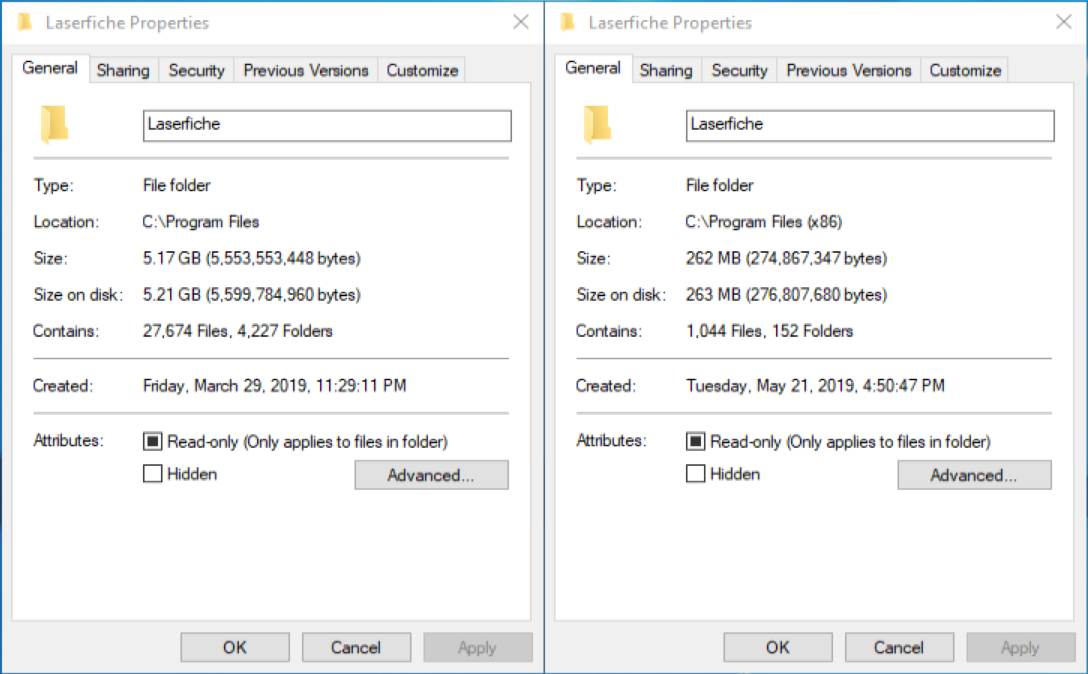
Storage isn't a good reason either. Having every single Laserfiche application installed together takes up under 6 GB, an inconsequential amount of storage on any modern server. If you're really up against available storage on your C:\ drive, expand it by 10-20 GB instead of adding a whole new drive. If you're that tight on C:\ drive storage, you need more buffer for Windows Update temp space anyway.
So, to recap, installing Laserfiche software on a different drive:

  • Does not provide any meaningful isolation of application data and instead fragments it across drives
  • Does not provide any backup and recovery benefits
  • Introduces an entire new category of configuration mishaps that occur with high frequency and cause real issues
  • Does not meaningfully save C:\ drive space because Laserfiche software installations do not use much space in a modern context


In the event we still end up allowing non-default installation locations with the upcoming new installers, we're likely to strongly recommend against it. If we do not allow non-default install paths, for in-place upgrades of existing non-default location installs, we plan to help automate (to the extent feasible) copying relevant configurations/files to the new, default install location to help avoid the same types of config issues described earlier.

If anyone has particularly compelling reasons for installing Laserfiche software at a custom path, we would genuinely like to hear what those are. This is the time where that feedback would be actionable. 

1 1
replied on January 2, 2025

Thanks.  Our Server team would like us to separate the OS & Apps, but your explanation should render that configuration moot.

1 0
replied on February 20, 2025

If the program files are on another drive, how could this potentially affect the new Admin Hub and installation/update processes?


0 0
replied on February 12

This explanation is lacking.

Apparently no one from IT rang in here.  Allow me.

Perhaps instead of talking about IT as some disconnected group, it might be a good idea to elicit feedback from actual IT.  We are here too.

The reason we want separation of apps and OS has nothing to do with any of the reasons specified.  It has everything to do with backup frequency and disaster recovery.   Not mentioned at all. 

My C: drive houses the OS.  It changes about once a month necessitating a backup at that frequency.  My apps data changes much more frequently, for example, the full text index, installed with the repository server, changes daily.  I would want to back that up much more frequently.  Theres no reason to backup my OS drive (50-100GB) daily but having all apps stored on there will require that to be backed up at the same frequency.  

The storage issue isn't compelling as you stated until you start to look at the storage required for these backups.  

You mentioned that people keep installing on the wrong drives and ending up with files scattered across drives.  That is a problem if you aren't paying attention while installing.  It's also indicative of a feature clearly missing from your installer...again.  On install, registry keys should be created storing the location for all components.  When upgrading or re-installing, those registry keys should be available to be read by the installer.  Users should then have the ability to either choose to install in the same location or select another location.


This is basic windows installer stuff. You all have been great about eliciting feedback from customers but in this instance, you've failed to elicit feedback from your customers IT and therefore fundamentally misunderstood the reason we need this feature.  

Please add the feature.  Go ahead and strongly recommend against using it.  For those who don't mind, it doesn't matter anyways.  For those of us who do mind, it actually causes some serious problems and adds actual costs to our backup host.

I hope you will consider this feedback as we are just now starting the upgrade to v12.  This is quite important to our city.

0 0

Replies

replied on February 12

We ended up installing the applications on the D: drive after our IT had the same reasoning. 

To work around this: Create the appropriate Laserfiche folders for D:\Program Files, D:\ProgramData, D:\Program Files (x86).  We then created symbolic links to those folders on C: to D: using the command: mklink /J "C:\Program Files\Laserfiche" "D:\Program Files\Laserfiche"  and run that for the other Laserfiche folders as well.  We started using this with v11 and has continued to work with our upgrades to v12. The only thing that didn't follow the symbolic links were a few inbound firewall rules, I had to point to the file on D: instead of leaving the reference to C:

1 0
replied on February 18

Thanks Craig, I had considered the possibility of using a junction or symlink or possibly extracting the msi files individually and then using cmdshell to pass the custom install directory.  The later actually seems better for me since its a bit more out of the box windows.  

Even still, with 10+ servers to install, having to do this on each upgrade is going to be annoying to say the least.  

I appreciate that there are alternatives but none of them indicate an installer that was created to address the needs of the customers.  Its a shame that this decision was made without much informed input.  Hopefully we'll see a 180 from LF soon.

0 0
You are not allowed to follow up in this post.

Sign in to reply to this post.